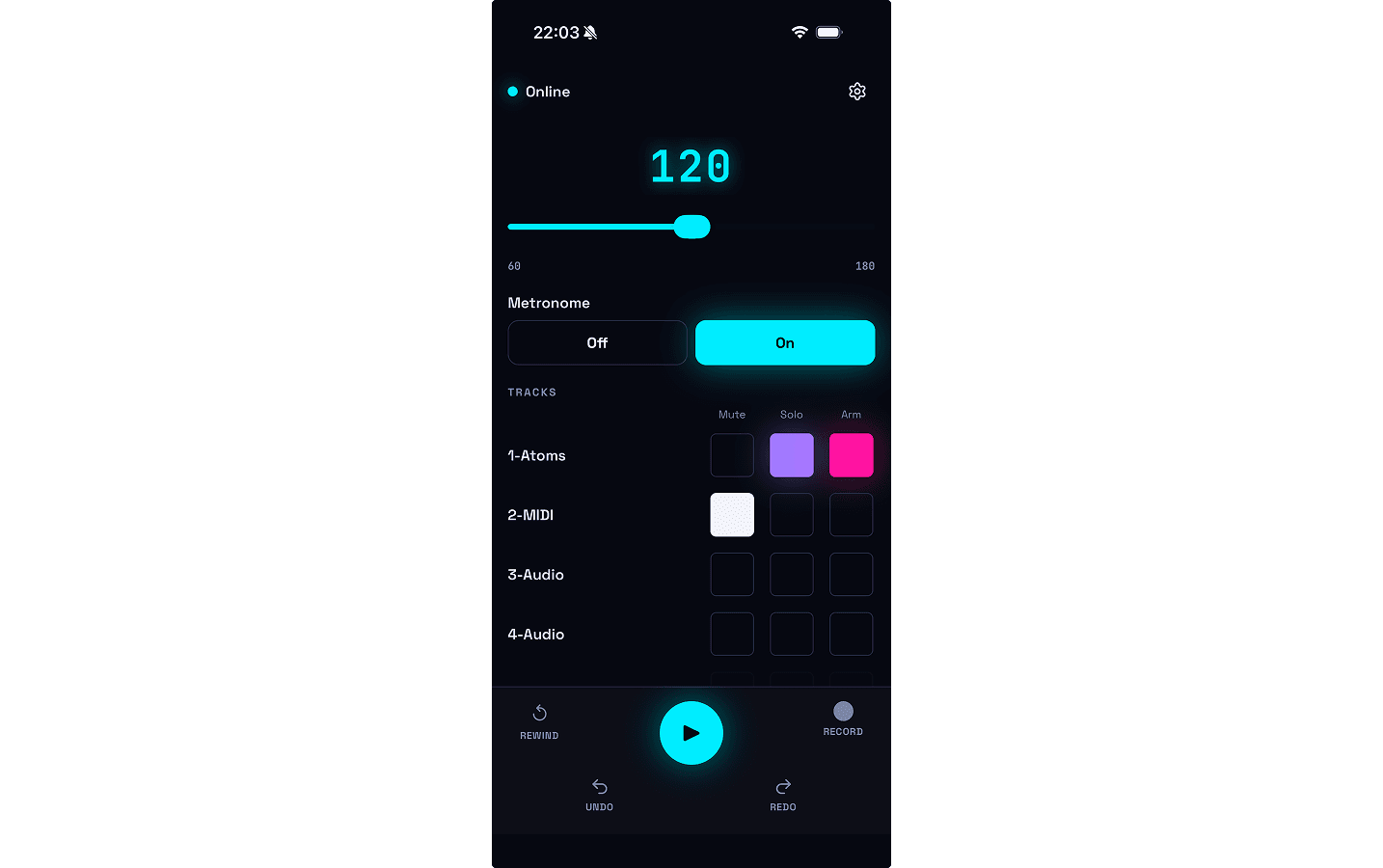
How To
1. Set up your PC (one-time only)
1-1
Run this on the PC where Ableton Live is installed.
On Windows, your browser may block the download as unsafe — choose to keep or save the file to continue. When you run it, Windows may also show "The publisher could not be verified. Are you sure you want to run this software?" since the installer isn't code-signed — choose "Run" in that dialog.
If you get an error running the setup file, download the Ableton Live setup files here instead, then place the OneTake folder in the following location on your PC.
macOS: ~/Music/Ableton/User Library/Remote Scripts/OneTake
Windows: %USERPROFILE%\Documents\Ableton\User Library\Remote Scripts\OneTake
1-2
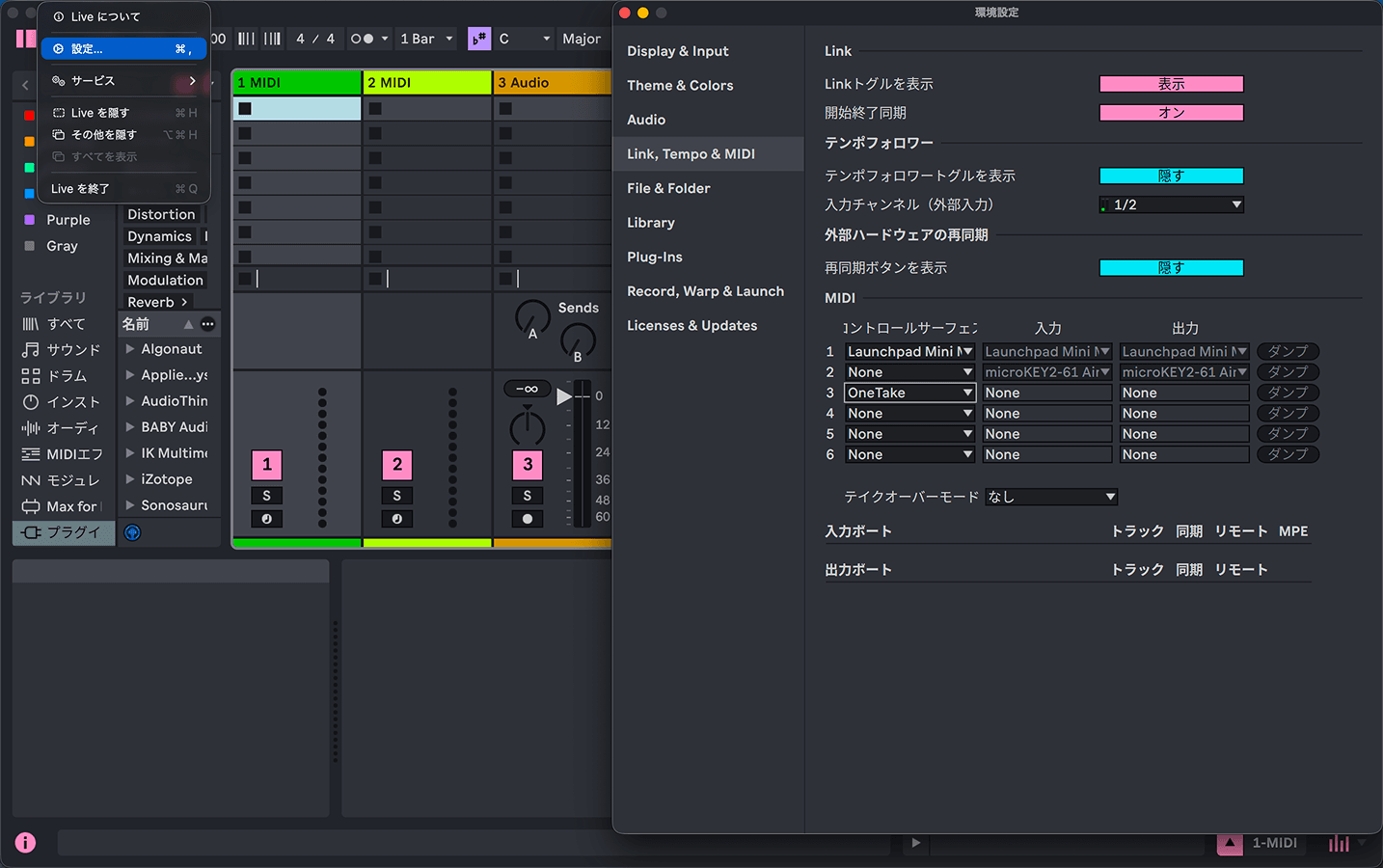
Launch Ableton Live, open Preferences → "Link, Tempo & MIDI", and select OneTake from the Control Surface dropdown in the MIDI section
1-3
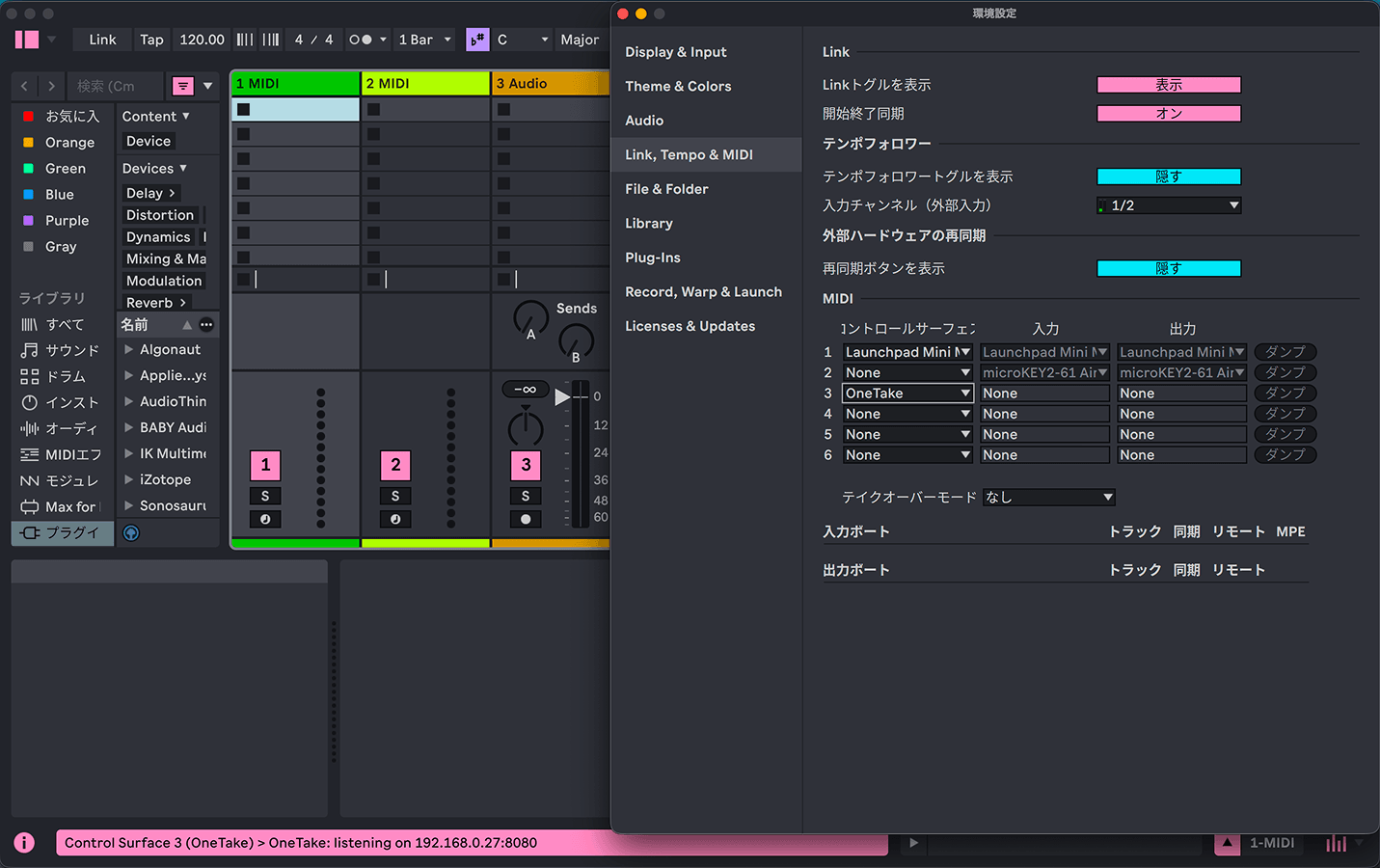
Once it starts successfully, "OneTake: listening on 〈IP address〉:8080" appears at the bottom of the screen
You'll use this IP address in step 2-2.
2. Connect your phone to your PC
2-1
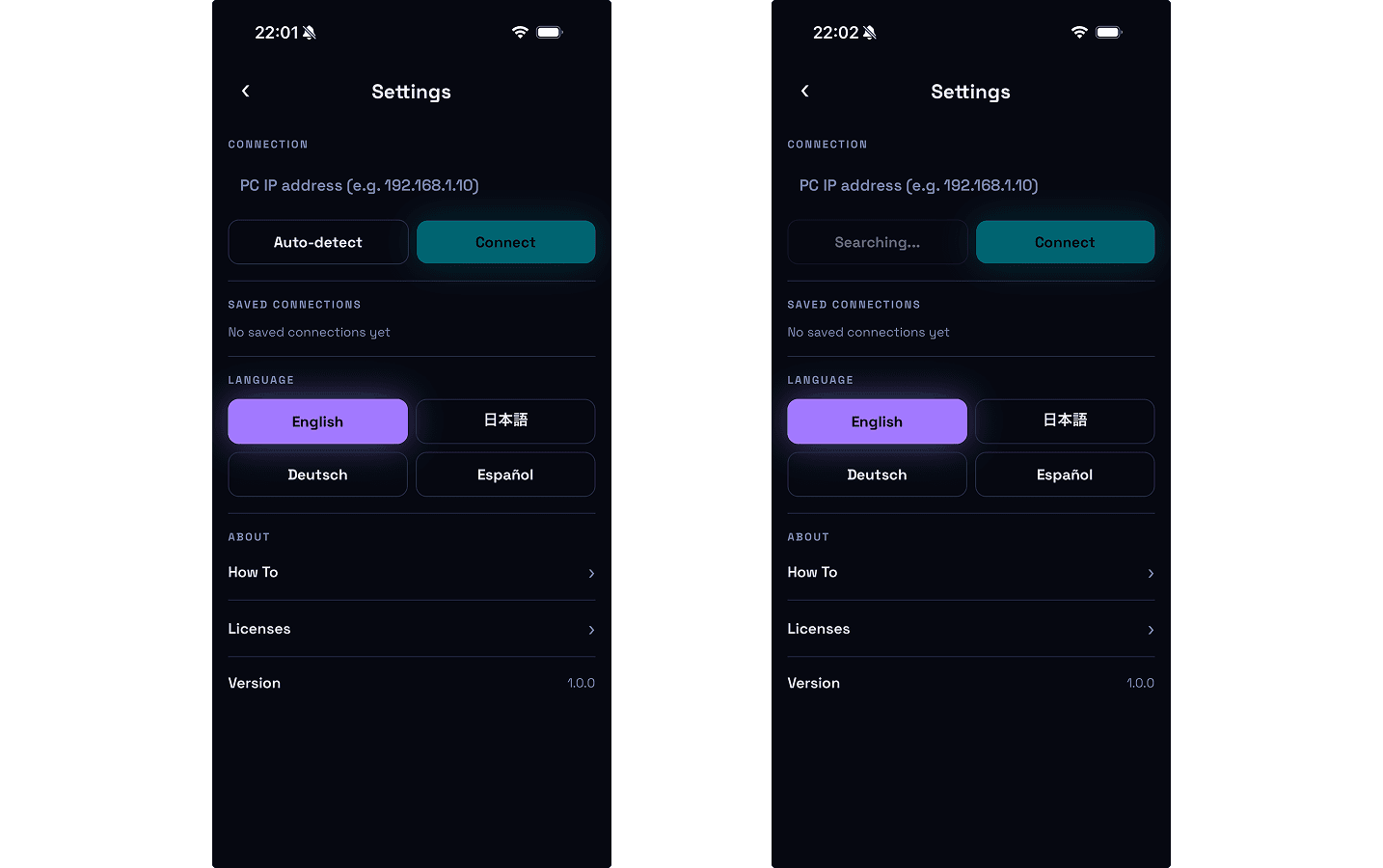
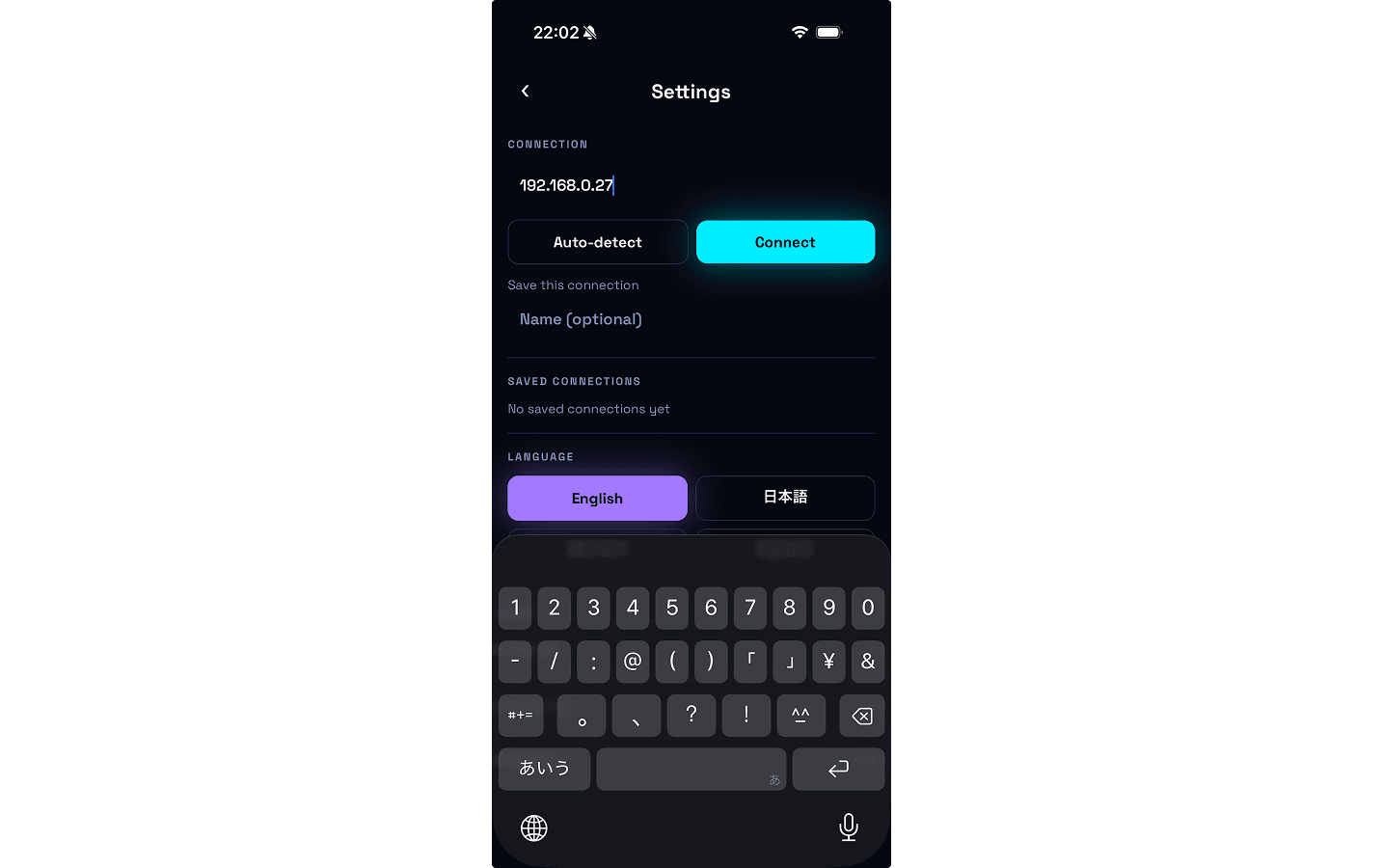
Launch OneTake on your phone and tap "Auto-detect" on the Settings screen
2-2
If it isn't found, enter your PC's IP address directly and tap "Connect"
See step 1-3 for how to find the IP address.
2-3
Go back to the main screen — if it shows "Online", you're connected